Published on: Thu 06-Nov-2025 10:24 AM
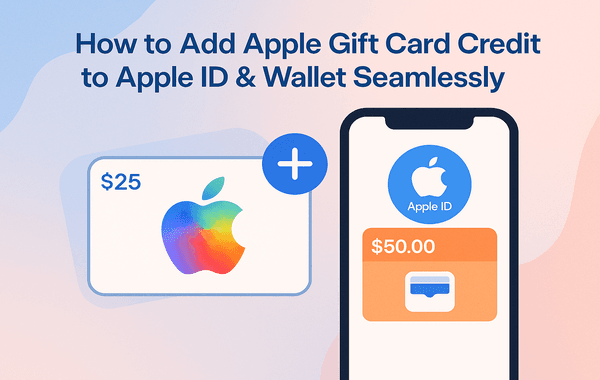
In today’s digital era, where convenience and security rule, Apple Gift Cards have become one of the easiest ways to manage purchases across the Apple ecosystem. Whether you’ve received one as a thoughtful gift or purchased it during a special discount offer, knowing how to add Apple Gift Card credit to your Apple ID and Wallet seamlessly can make your digital experience smoother and smarter.
If you’re ready to top-up instantly and enjoy uninterrupted Apple services — from the App Store to Apple Music — you can buy genuine Apple Gift Cards online at Pokibit.
An Apple Gift Card is a prepaid digital or physical card that can be redeemed to add funds to your Apple ID balance. Once redeemed, these funds can be used across Apple’s services, including the App Store, iTunes, Apple Music, Apple TV+, Apple Books, and even iCloud storage plans.
Available in multiple denominations, these cards make it easy for users to enjoy Apple’s digital ecosystem without linking a credit or debit card. In India and other global regions, Apple Gift Cards have grown popular for secure top-ups and as thoughtful gifts for tech lovers.
Adding an Apple Gift Card credit to your Apple ID offers several key benefits beyond just convenience:
A recent survey by Statista revealed that over 60% of iOS users prefer prepaid credit options for App Store purchases, proving how effective and trusted this method has become.
Whether you’re on iPhone, iPad, Mac, or PC, Apple makes the redemption process incredibly simple. Let’s go step-by-step so you can top up your account in minutes.
Before you can add credit, make sure you have a valid Apple Gift Card. Always purchase from a trusted platform like Pokibit to ensure authenticity, instant delivery, and guaranteed working codes.
Pokibit offers:
Your Apple Gift Card will contain a 16-digit alphanumeric code on the back (physical card) or in your email (digital card). The code typically starts with an “X” and is what you’ll use to redeem your balance.
Your Apple ID balance will update instantly, and you can start purchasing apps, movies, or subscriptions right away.
The amount will automatically be added to your Apple ID balance.
You’ll now see the updated balance in your account.
For extra convenience, you can store your Apple Gift Card in Apple Wallet:
Once added, you can track your balance, redeem directly from Wallet, and never worry about losing your gift card details again.
Even though the process is simple, some users face small issues during redemption. Here’s how to troubleshoot them:
If you encounter issues while redeeming your Apple Gift Card, don’t worry — most of them are easy to fix. For instance, if you see a “Code already redeemed” message, it likely means the code has been used earlier. To verify, simply check your Apple ID balance to see if the funds have already been added. If you get an “Invalid code” error, it could be due to a typing mistake or because you’re trying to redeem a card from a different region. Make sure your Apple Gift Card matches your Apple ID’s country or region settings before trying again. Lastly, if your balance isn’t updating after redemption, it might just be a temporary Apple server delay. In that case, wait a few minutes or log out and sign back into your account — your balance should appear correctly
Tip: Always purchase region-appropriate cards. For example, a U.S. Apple Gift Card will not work on an Indian Apple ID and vice versa.
You can easily check your Apple Gift Card balance anytime:
Alternatively, check directly on the App Store or iTunes account page for real-time updates.
Once the balance is added, the possibilities are endless! Here’s how users commonly spend their Apple Gift Card credit:
With frequent discounts and bundle offers, topping up your Apple ID with prepaid credit is a smarter way to manage entertainment expenses.
To ensure your balance stays protected:
According to Apple’s official data, fraudulent gift card requests are among the top 3 online scams in 2025 — so vigilance is key.
If you’re planning to top up your Apple ID securely and instantly, Pokibit offers verified and fast digital delivery of Apple Gift Cards for global users. Whether you’re topping up your account, sending a gift, or bulk buying for your family, Pokibit ensures you get:
Start your seamless Apple experience today — Buy an Apple Gift Card Now and enjoy uninterrupted entertainment and services with Pokibit.
Adding Apple Gift Card credit to your Apple ID and Wallet isn’t just about convenience — it’s about security, control, and flexibility. Whether you’re purchasing subscriptions, apps, or media, topping up your balance ensures smooth payments and worry-free entertainment.
If you’re ready to make your Apple experience seamless, Pokibit is your go-to platform for safe, verified, and instant Apple Gift Card purchases.

Why Honkai Star Rail Top-Up Gives Maximum Value for Pulls and Events

Complete Buyer's Guide to Honkai Star Rail Top-Up: Safe UID Methods India

How to Spend Genesis Crystals on Character Skins

How to Redeem Genshin Battle Pass Rewards

How to Spend Moba Legends Diamonds Wisely for Rank Push

Purchase Chamet Live Diamonds With UPI for Video Calls

How to Use Genshin Impact Genesis Crystals for Wishes

Top Benefits of Steam Wallet Gift Cards: Unlimited PC Game Access in India

Buy Google Play Gift Card India: Secure Ways with UPI and Discounts

Top Nintendo eShop Gift Cards for Switch Games: Buy Now Guide